Introduction
You’ve tried writing prompts for Gemini Omni. The model spits back something that ignored half of what you asked, motion drifts, the character’s face changes between frames, or the camera goes somewhere you never told it to go.
That’s not a model problem. It’s a prompting problem.
Gemini Omni—launched at Google I/O on May 19, 2026—works differently from Veo 3, Sora, Kling, or any other video model you’ve used. It reasons about the world instead of matching keywords. It holds state across turns instead of treating every prompt like a fresh start. It accepts audio, images, and video as inputs alongside text.
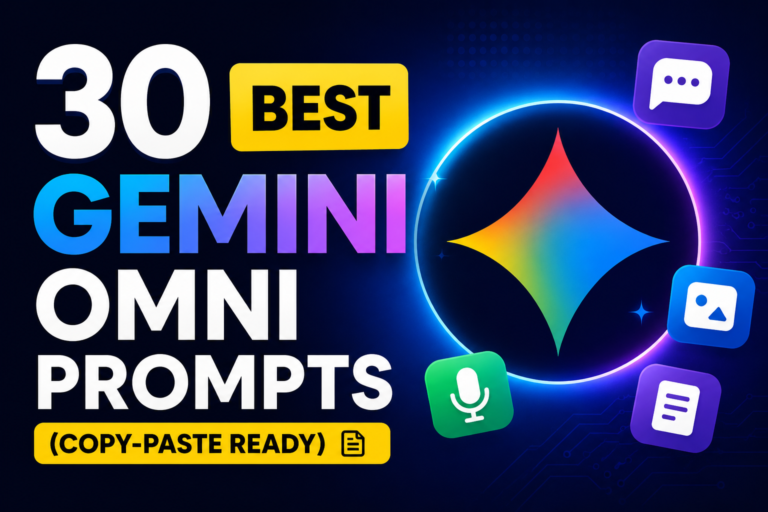
This guide gives you 30 tested Gemini Omni prompts you can copy, paste, and adapt right now. Each Gemini Omni prompt is structured to exploit what Omni actually does well, not what worked on a different model six months ago. Whether you’re generating cinematic brand spots, editing UGC clips through conversation, transferring Studio Ghibli style to your footage, or creating product demos with on-screen text that stays pixel-perfect—these Gemini Omni prompts are built for the way Omni actually thinks.
Most creators waste hours fighting Gemini Omni prompts that were written like Veo 3 commands. Don’t. The formula is simpler than you think: lead with clear creative intention, use real camera language, bring reference images when consistency matters, and refine one variable per turn. That’s how you get the best Gemini Omni prompts to deliver outputs that feel directed, not generated.
Stop guessing how to write Gemini Omni prompts that work. Here’s your complete Gemini Omni prompts library—30 copy-paste templates organized by use case, built for creators who need production-ready results in minutes, not hours of trial and error.
Quick Answer: The Best Way to Prompt Gemini Omni
The strongest Gemini Omni prompt formula is: Camera Movement + Subject + Action + Setting + Lighting + Mood. Start broad, not with a perfect paragraph. Gemini Omni reasons about the world—give it intention and trust the execution, then refine through multi-turn conversation one element at a time. Bring an image reference whenever product or character consistency matters.
What Makes Gemini Omni Prompts Different
Before you copy a single prompt, understand why Gemini Omni prompting is genuinely different.
1. Multimodal input, not just text. You can attach a voiceover, a reference image, a source video clip, or a music track alongside your text prompt. Omni reasons across all of them together instead of treating them as independent inputs. A voiceover-driven explainer isn’t a text prompt plus audio—it’s one unified instruction where the model times visual beats to your audio’s rhythm.
2. Conversational, not one-shot. Veo 3 and Sora expect you to write the perfect prompt and pray. Gemini Omni keeps state across turns. You say “change the lighting to sunset,” and it preserves the character, the camera move, and everything else. This makes iteration feel like directing an editor, not restarting a slot machine.
3. World-model reasoning, not keyword matching. Omni knows physics, gravity, anatomy, and real-world relationships. You can say “a marble rolling on a chain-reaction track” without describing every obstacle. You can say “protein folding explainer in claymation” and trust it to get the science right because it actually knows the science.
4. Cross-frame text coherence. On-screen text—especially in non-Latin scripts like Japanese or Chinese—stays legible as the camera moves. This is a known weakness in most AI video models. Omni handles it.
The Gemini Omni Prompt Formula That Works
You don’t need a long paragraph. You need a clear directorial brief in this order:
| Element | What to Describe | Example |
|---|---|---|
| Camera | Shot type, movement, framing | Slow push-in, handheld, overhead, tracking |
| Subject | Who or what is in frame | A young woman in a white dress |
| Action | What’s happening | Walking slowly, looking at the stars |
| Setting | Location and environment | Rooftop in a futuristic city at night |
| Lighting | Source, quality, color | Warm rim lighting, soft blue grade |
| Mood | Emotional tone | Dreamy, cinematic, peaceful |
Pro Tip: Start with this structure, generate, then refine one element per turn. Don’t try to nail everything in one prompt.
30 Copy-Paste Gemini Omni Prompts
Text-to-Video Prompts
1. Cozy Cabin Snowstorm
Slow panning shot of a cozy wooden cabin interior during a heavy snowstorm outside. Warm fireplace light, a cat sleeping on the rug, steam rising from a mug of hot chocolate. Calm and relaxing mood.
2. Cliffside Sunrise
A young woman in a flowing white dress stands on a cliff overlooking the ocean at sunrise. She closes her eyes as the wind gently blows her hair. Warm golden light, peaceful and cinematic atmosphere, slow smooth tracking shot from the side.
3. Cyberpunk Tokyo Street
A cyberpunk samurai walking through a rainy Tokyo street at night. Neon signs reflecting on wet pavement, steam rising from street vendors. Dramatic lighting with strong contrasts, dynamic camera following from behind.
4. Handheld UGC Vlog Style
Casual handheld iPhone vlog style video of a 20-something woman walking down a Brooklyn street in selfie mode, talking energetically about her morning coffee. Natural skin texture, no filter, slight motion blur. Background: brownstones, early morning.
5. Claymation Cooking Tutorial
10-second clip in stop-motion claymation style. A claymation chef chops a claymation carrot on a claymation cutting board. Visible thumbprints in the clay. Top-down view. Slightly imperfect frame rate to match real stop-motion.
6. Studio Ghibli Countryside
10-second establishing shot in Studio Ghibli animation style. A wooden Japanese train station in the countryside at golden hour. Soft pastels, hand-drawn line work, leaves blowing across the platform. Pan slowly from left to right.
7. Cozy Cottagecore Time-Lapse
10-second time-lapse in cottagecore aesthetic. A wooden kitchen with morning light streaming through linen curtains. Hands knead dough, then shape it into a loaf. Bread rises in fast-motion. Soft, warm color grade. Background: wildflowers in a ceramic vase.
8. Pixar-Style Character Reveal
10-second clip in Pixar 3D animation style. A small, round, friendly robot with big expressive eyes is sitting on a desk. It looks up and waves at the camera. Pixar lighting—soft global illumination, subsurface scattering on the eyes. Wide shot.
9. 1960s Commercial Style
10-second clip styled as a 1960s television commercial. Slight film grain, color shifted toward warm reds and yellows, vignetting. Subject: a woman in a 1960s dress holds up a product box, smiling at the camera. Voice-over slot reserved for narration.
10. Cyberpunk Neon Tracking Shot
10-second cyberpunk tracking shot. Rain-soaked Tokyo street at night, neon signs reflecting in puddles. Camera tracks behind a figure in a long coat walking away from us. Cinematic anamorphic lens flares. Color palette: magenta, cyan, deep blue.
Image-to-Video Prompts

11. Matcha Pour Top-Down
Top-down view of hands pouring matcha into a ceramic bowl. Keep the lighting and setting from the reference image. Smooth liquid motion, warm natural light, steam visible. Clean composition for social media.
12. Product Unboxing
A person opening a sleek black product box on a wooden desk in a minimalist apartment. Morning light streaming through windows. Slow zoom in. Keep the product consistent with the reference image throughout.
13. Poodle Cafe Scene
The poodle from the reference image sits at a cafe table, takes a sip of coffee and bites a croissant. Then another well-dressed dog in matching attire pulls up the empty chair and joins him. Cute, natural movements.
14. Perfume Bottle Orbit
Slow camera orbit around a perfume bottle on a reflective surface with flower petals around it. Soft pink and gold lighting, elegant luxury mood. No readable brand text, clean caption space. 9:16 vertical format.
15. Desk Reset Overhead
Overhead camera of a messy desk transforming into a clean workspace. Notebooks, keyboard, and coffee arranged neatly. Satisfying quick cuts, natural daylight, calm music. Start from the reference image composition.
Multi-Turn Editing Prompts
16. Lighting Swap (Turn 1 → Turn 2)

Turn 1: 10-second clip: a person opening a black product box on a wooden desk in a minimalist apartment. Morning light. Slow zoom in.
Turn 2: Make it sunset light instead of morning. Keep everything else identical.
17. Color Variant (Turn 2 → Turn 3)
Continuing from prompt 16: Now make the box white instead of black. Keep the lighting and camera move the same.
18. Add Character to Scene (Turn 1 → Turn 2)
Turn 1: Establish a scene: a coffee shop, late afternoon, sun streaming through tall windows. Wide shot, no people yet.
Turn 2: Add a woman in her 30s wearing a green jacket at the corner table reading a hardcover book. Maintain the lighting and composition.
19. Camera Reframe (Turn 2 → Turn 3)
Continuing from prompt 18: Now move the camera to a medium close-up of her hands turning a page. Keep her appearance and the book consistent.
20. Food Replacement Edit
Replace the food on the plates with creamy pumpkin soup. Keep the two people talking, their movements, facial expressions, background, and all lighting exactly the same.
21. Aspect Ratio Recomposition
Take the previous shot and reframe it for vertical 9:16. Keep the subject and lighting identical but recompose for the new aspect ratio.
22. Continuity Lock
From the previous shot, lock the character’s appearance—face, clothing, hair—as a reference for all subsequent generations in this conversation.
Style Transfer & Viral Style Prompts

23. Ghibli Style Transfer
Take the attached video clip and restyle it as a Studio Ghibli animated scene. Preserve the camera motion and timing exactly. Replace the modern setting with a 1980s Japanese countryside. Keep the subject’s posture and expression coherent across frames.
24. Realistic From Drawing
Turn this into realistic footage, using the drawing only as a guide for movement. Do not show the drawing in the final video.
25. Multi-Reference Blend
Apply the pose and motion from the attached video to the character from the attached image. Then apply the style from the second reference image to the new video.
26. Motion Effects Addition
Edit this keeping everything the same. Add animated motion effects coming out of the skateboard.
Educational & Explainer Prompts

27. Protein Folding Claymation
Claymation explainer of protein folding. Everything is made of clay, no hands visible. Stop-motion animation. Accurate scientific representation showing each stage. Calming background music.
28. Quantum Computing Visual
Visualize the difference between regular computing and quantum computing. Use a contemporary flat-media style that blends minimalist vector shapes with rich organic textures. No hands. On-screen labels for each stage.
29. On-Screen Equation Demo
10-second video of a chalkboard with the equation E = mc² written on it. Camera slowly orbits 180° around the chalkboard. The equation must stay correct and fully readable from every angle.
30. Dual-Language Subtitle Overlay
10-second clip: a chef cooking dumplings in a steaming kitchen. Subtitles at the bottom in both English (“Hand-folded dumplings”) and Chinese (“手工饺子”). Both subtitle lines stay readable throughout.
Gemini Omni Camera & Motion Language
The model speaks fluent videography. Use these terms instead of generic descriptions:
| What You Want | Say This |
|---|---|
| Slow zoom | “Slow push-in” or “dolly zoom” |
| Steady frame | “Static,” “locked off,” or “fixed” |
| Uncut shot | “One continuous shot” or “oner” |
| Phone look | “Natural smartphone zoom” or “handheld iPhone” |
| Cinematic look | “Film camera” or “anamorphic lens flares” |
| Overhead | “Top-down view” or “overhead camera” |
| Follow | “Tracking shot from behind” |
Pro Tip: You can chain camera moves in one instruction. “A close-up on a character’s shoes that quickly tilts up to a medium shot, then widens” gives Omni a clear choreography.
How to Edit Videos Through Conversation
This is where Omni beats every other model. You don’t re-prompt. You talk to it.
The Rule: Change one variable per turn.
“Change the butterfly to a bee.”
[Review]
“Now change the bee to a small swarm of fireflies.”
[Review]
“Shift the camera to over the violinist’s shoulder.”
Each turn preserves everything from the last generation except what you explicitly changed.
Common Mistake: Cramming five edits into one instruction. You lose the ability to tell which change caused a problem. One edit per turn when precision matters.
Common Mistakes With Gemini Omni Prompts
| Mistake | Fix |
|---|---|
| Writing a perfect one-shot prompt | Start broad, refine through conversation |
| Over-describing every detail | Give intention, trust the model’s world knowledge |
| Changing too many things at once | One variable per editing turn |
| Not using image references for products | Upload a product image or start frame when consistency matters |
| Using vague style terms like “anime” | Specify “2020s anime style, think Demon Slayer” |
| Forgetting to lock character appearance | Explicitly say “lock this character’s appearance for this session” |
| Ignoring camera language | Use real director terms: push-in, locked off, tracking |
People Also Ask
Where do I enter Gemini Omni prompts?
You can enter prompts through the Gemini app, Google Flow, YouTube Shorts (via the Create flow), or the YouTube Create App. All support Gemini Omni Flash. Developer API access rolls out in the weeks following the May 19, 2026 launch.
What is the best Gemini Omni prompt format?
There is no single best format because Omni is conversational. The strongest pattern: start with a broad scene-setting prompt structured as Camera + Subject + Action + Setting + Lighting + Mood, then refine through 3–5 follow-up turns changing one variable at a time.
Do these prompts work in Veo 3 or Sora?
Text-only prompts work in Veo 3 to varying quality. Multimodal prompts—audio plus image input—only work fully in Gemini Omni. Multi-turn editing prompts work in Omni; Veo 3 has limited conversational editing. Sora 2 was discontinued as of April 2026.
How long can my Gemini Omni prompt be?
Google has not published explicit limits for Omni Flash. In practice, prompts up to several hundred words work well, especially when detailed about style, motion, and on-screen text. The bigger question is conversational length—Omni preserves state across many turns, so don’t cram everything into turn one.
How do I keep characters consistent across prompts?
Two approaches. First, tell Omni explicitly: “Lock this character’s appearance—face, clothing, hair—for all subsequent generations.” Second, after generating a strong character, reference back to it in later turns: “Use the same character as in the previous shot.” Uploading a reference image of the character gives the strongest anchor.
FAQs
1. What makes Gemini Omni prompts different from Veo 3 prompts?
Omni accepts multimodal inputs—audio, images, and video alongside text. It preserves state across conversation turns, so you edit instead of re-prompting. It reasons with world knowledge rather than matching keywords. Veo 3 is primarily a text-to-video model with limited editing; Omni is an any-to-any model with native conversational editing.
2. Can I use audio in a Gemini Omni prompt?
Yes, and it’s one of Omni’s signature features. Attach a voiceover, music track, or ambient audio alongside your text prompt. Omni generates video timed to the audio’s rhythm and dynamics natively—you don’t need to edit them together afterward.
3. What are the best Gemini Omni prompts for social media?
For TikTok and Reels, the claymation cooking tutorial, handheld UGC vlog style, Studio Ghibli establishing shot, and cozy cottagecore time-lapse prompts perform especially well. Use 9:16 vertical format and specify “clean caption space” so you can add text overlays in your editor.
4. How do I write a Gemini Omni prompt for video editing?
Upload your source video, then write a prompt that specifies exactly what to change while asking Omni to preserve everything else. Example: “Replace the food on the plates with creamy pumpkin soup. Keep the two people talking, their movements, background, and lighting exactly the same.”
5. Does Gemini Omni handle text on screen correctly?
Yes—cross-frame text coherence is one of Omni’s strongest capabilities. It keeps on-screen text correct and readable as the camera moves, including in non-Latin scripts like Japanese and Chinese. This makes it usable for branded lower-thirds, subtitles, and educational content without manual cleanup.
6. What’s the best way to learn Gemini Omni prompting?
Copy five prompts from this guide that match your use case. Generate each one in the Gemini app or Google Flow. Then pick one and run it through 3–5 editing turns changing one variable at a time. That hands-on pattern teaches more about how Omni works than any guide ever could.
7. Can I generate multiple video variants from one prompt?
Yes. Use multi-turn editing to generate variants. Generate a base video, then ask: “Generate a variant with faster cuts and brighter colors but keep the product identical.” Omni preserves the core subject while changing the visual treatment—ideal for A/B testing ad creative.
8. Is there a free way to test Gemini Omni prompts?
Gemini Omni Flash is accessible through the free tier of the Gemini app and YouTube Shorts Create flow. You can also test prompts on platforms like SeaArt AI and Flyne AI that have integrated Omni into their video generation interfaces.
Final Verdict
Gemini Omni rewards a different prompting approach than previous AI video models. The best creators don’t write longer prompts—they write clearer creative instructions and refine their results through conversation.
The 30 Gemini Omni prompts in this guide are designed to give you a strong starting point. Copy the prompt that matches your project, customize the subject or setting, and generate your first result.
Instead of starting over every time, improve the output one step at a time. Change only one variable—such as the camera angle, lighting, character, or scene—while keeping the rest of the prompt consistent.
This simple workflow helps you achieve more accurate, consistent, and professional AI-generated videos.
If you remember just one tip, let it be this:
Prompt like a director, not a programmer.
Focus on your creative vision, provide clear direction, and let Gemini Omni handle the technical details. Treat each conversation as an editing session where every follow-up prompt gradually improves the final result.
Key Takeaways
- Gemini Omni prompting is conversational, not one-shot. Start broad, refine through multi-turn editing.
- The best formula: Camera Movement + Subject + Action + Setting + Lighting + Mood.
- Multimodal input is Omni’s differentiator. Use audio, images, and video references alongside text.
- Use real camera language. “Push-in,” “locked off,” “oner,” “tracking shot” all land cleanly.
- Change one variable per editing turn. Omni preserves everything else.
- Lock characters explicitly when consistency matters across scenes.
- Viral styles work. Claymation, Ghibli, Pixar, UGC, and Cottagecore are proven high-performers in 2026.
- Cross-frame text coherence makes Omni viable for branded content without manual cleanup.
- Test on hard cases first. If Omni nails equations, multi-language captions, and product labels through rotation, it’ll handle easier prompts reliably.
- Your next move: Pick three prompts from this guide, run them in Gemini Omni, compare the outputs to what Veo 3 or Kling produce from the same instruction, and iterate from there.



5 thoughts on “30 Best Gemini Omni Prompts to Try in 2026 (Copy-Paste Ready)”
This prompt library is actually well organized — the formula breakdown and the tip about refining one variable at a time make a real difference when working with video models. The multimodal emphasis is a good reminder too. If you want a simpler all-in-one option for generating images and video without juggling prompts, DeepAI is worth checking out alongside these templates.
excellence
That’ truly informative article
The prompting formula here is solid—leading with camera movement and refining one variable at a time makes a real difference with Gemini Omni. I found that attaching a reference image for character consistency saved me multiple retries, and the cross-frame text coherence is genuinely impressive for product demos. If you’re also experimenting with music for your video projects, a free AI song generator like Liedly can complement these prompts nicely for background tracks that match the mood you’re directing.